
Product SEO
How Do I Edit Meta Descriptions in BIE?
The Meta descriptions tool in Bulk Image Edit & SEO/GEO lets you set the meta descriptions of your products, collections and blog articles in bulk, with a template, with find and replace, or by generating them with AI.
Why should I care about meta descriptions?
The meta description is the short summary search engines can show under your page title in search results. A clear, specific one tells shoppers what the page offers and can help more of them click through to your store. For more tips, see Google’s guide: Control your snippets in search results.
Open the Meta descriptions tool
- Go to your Shopify Admin.
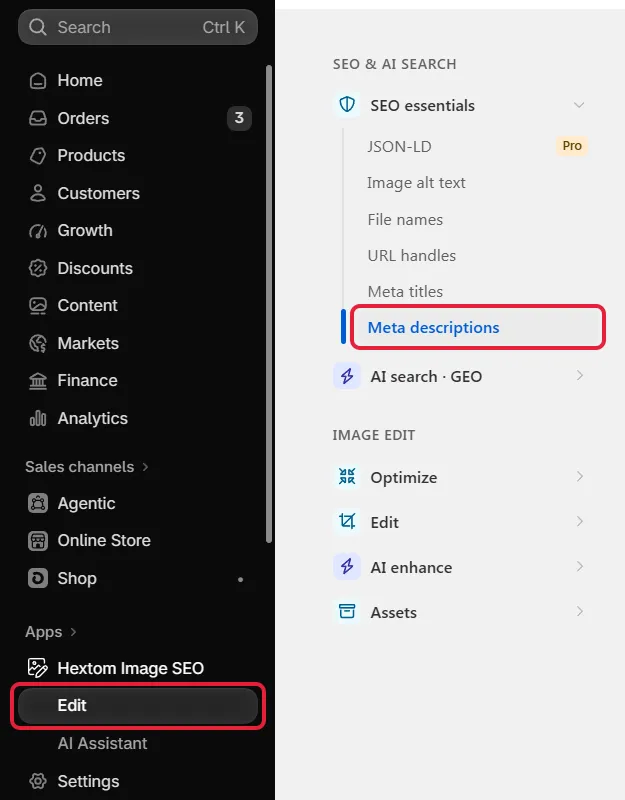
- Navigate to Apps → Hextom Image SEO and click Edit under it.
- In the tool menu, under SEO essentials, select Meta descriptions.
This opens the Bulk Meta Description task setup page.
Step 1: Select the item type for SEO editing
Choose which items you want to edit. For this guide, we’ll use Products, but you can also select Collections or Blog articles.

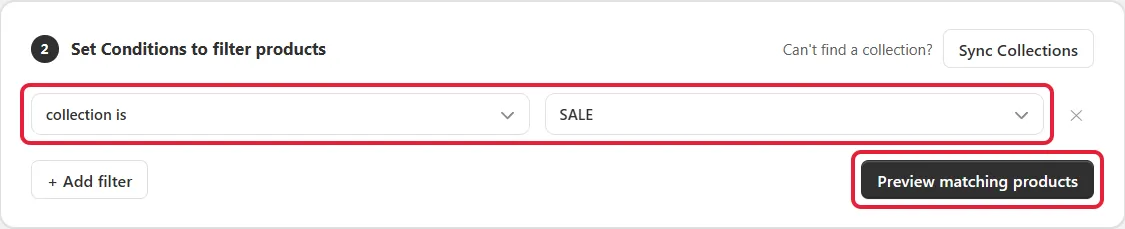
Step 2: Set conditions to filter products
Set conditions to tell the app which products to target. For example, to edit every product in a collection called SALE, choose collection is and select the collection. Click + Add filter to add more conditions, or leave them empty to edit every product.
Click Preview matching products to see the products that match your conditions before you continue.
Step 3: Edit matching items
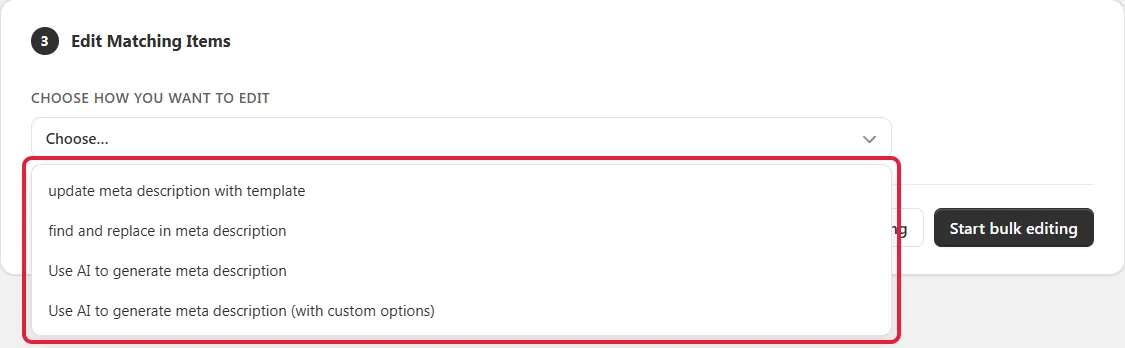
Under Choose how you want to edit, select how the meta descriptions should be updated:
- Update meta description with template: builds each meta description from template variables.
- Find and replace in meta description: replaces specific text in the existing meta descriptions.
- Use AI to generate meta description: writes a new meta description of up to 320 characters from the first product image, title and description, in the language it detects from your product details.
- Use AI to generate meta description (with custom options): same as above, but you choose the information the AI uses, a Tone and Special instructions. To get a specific language, name it in Special instructions, for example “Write the meta description in English.”
Both AI options have a Skip products that already have a meta description checkbox, so you can fill in only the missing ones.
Note: The template and find and replace options are free of credit charge. The two AI options use 2 credits per item.
For this guide, we’ll use Update meta description with template. Click the template variables to insert them. For example, [product_title]-[shop_name] adds the product title followed by your store name to each meta description. Collections and blog articles have their own variables. Max length (characters) can be up to 320, but search engines usually show only the first 150 to 160 characters, so put the most important information first.
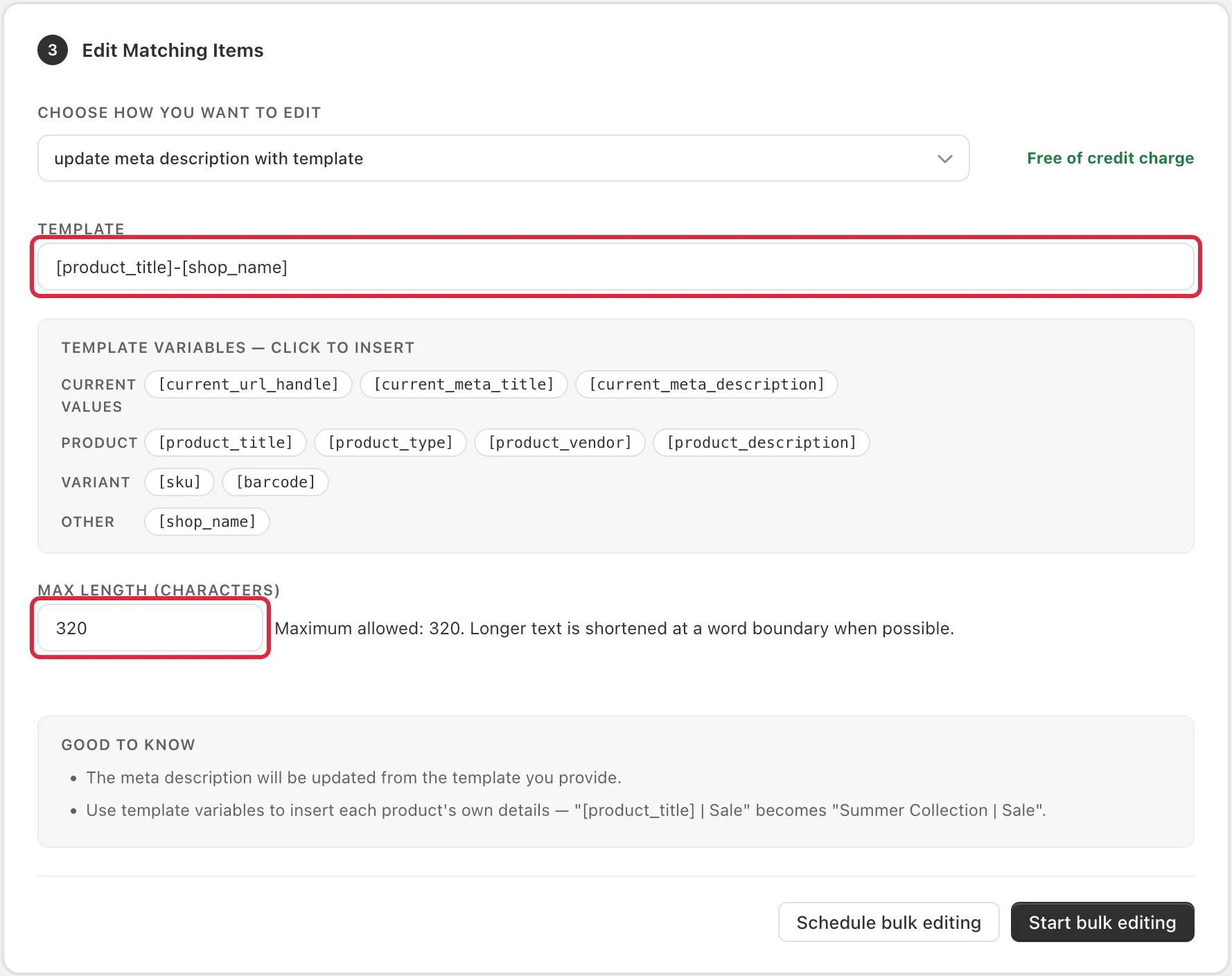
Click Start bulk editing. To have the task run automatically, for example so new products get meta descriptions too, click Schedule bulk editing instead. With the AI options, tick Skip products that already have a meta description so existing ones aren’t rewritten.
Once the task is completed, open Tasks under the app in the Shopify sidebar to see the result. You can also revert a meta description task there if you want to restore the previous ones. See How do I cancel/revert a task?
Related guides
- How to use File Name feature?: rename image files in bulk with the same steps.
- SEO Feature Overview: all the tools in the SEO & AI search section.
If you have any concerns or feedback about the feature, please let us know at help@hextom.com.