
Image Edit
How to use Alt Text feature?
The Image alt text tool in Bulk Image Edit & SEO/GEO lets you update the alt text of your store’s images in bulk, using templates or AI.
Why should I care about alt text?
Good alt text helps your images rank in Google Image Search, and it improves the experience for visually impaired shoppers who use screen readers. For more on writing good alt text, see Google’s guide: Google Images best practices.
Open the Image alt text tool
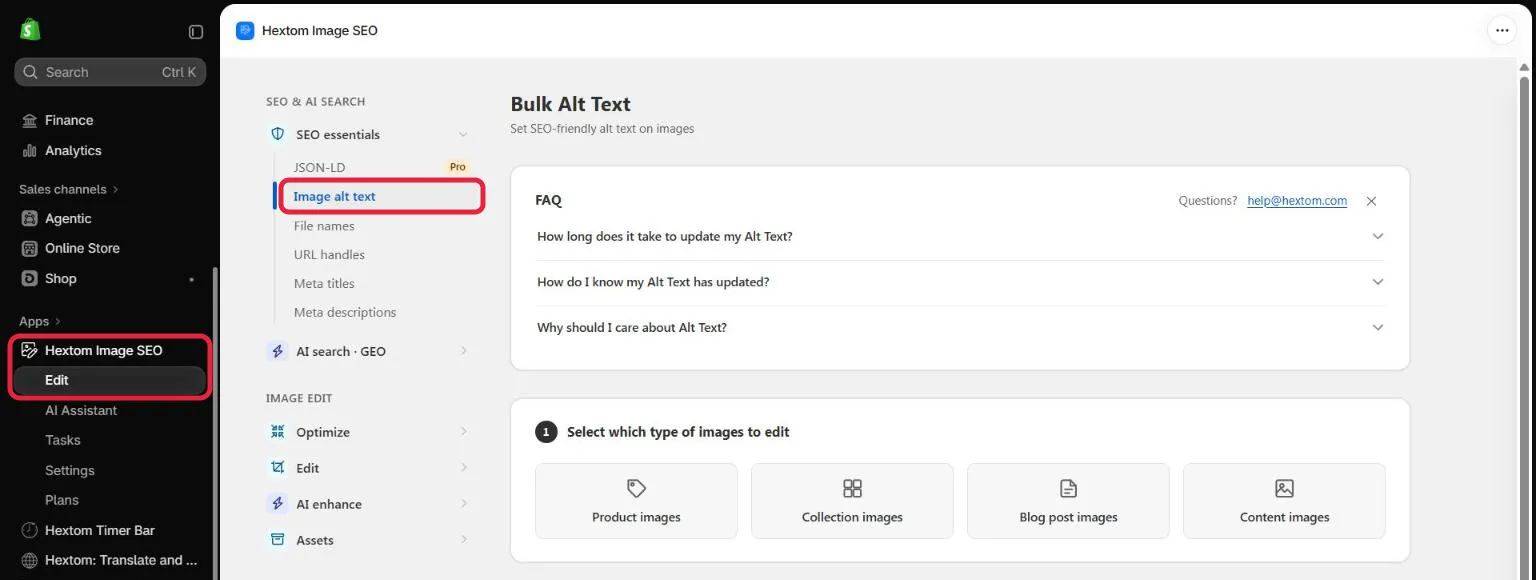
- Go to your Shopify Admin.
- Navigate to Apps → Hextom Image SEO and click Edit under it.
- In the tool menu, under SEO essentials, select Image alt text.
This opens the Bulk Alt Text task setup page.
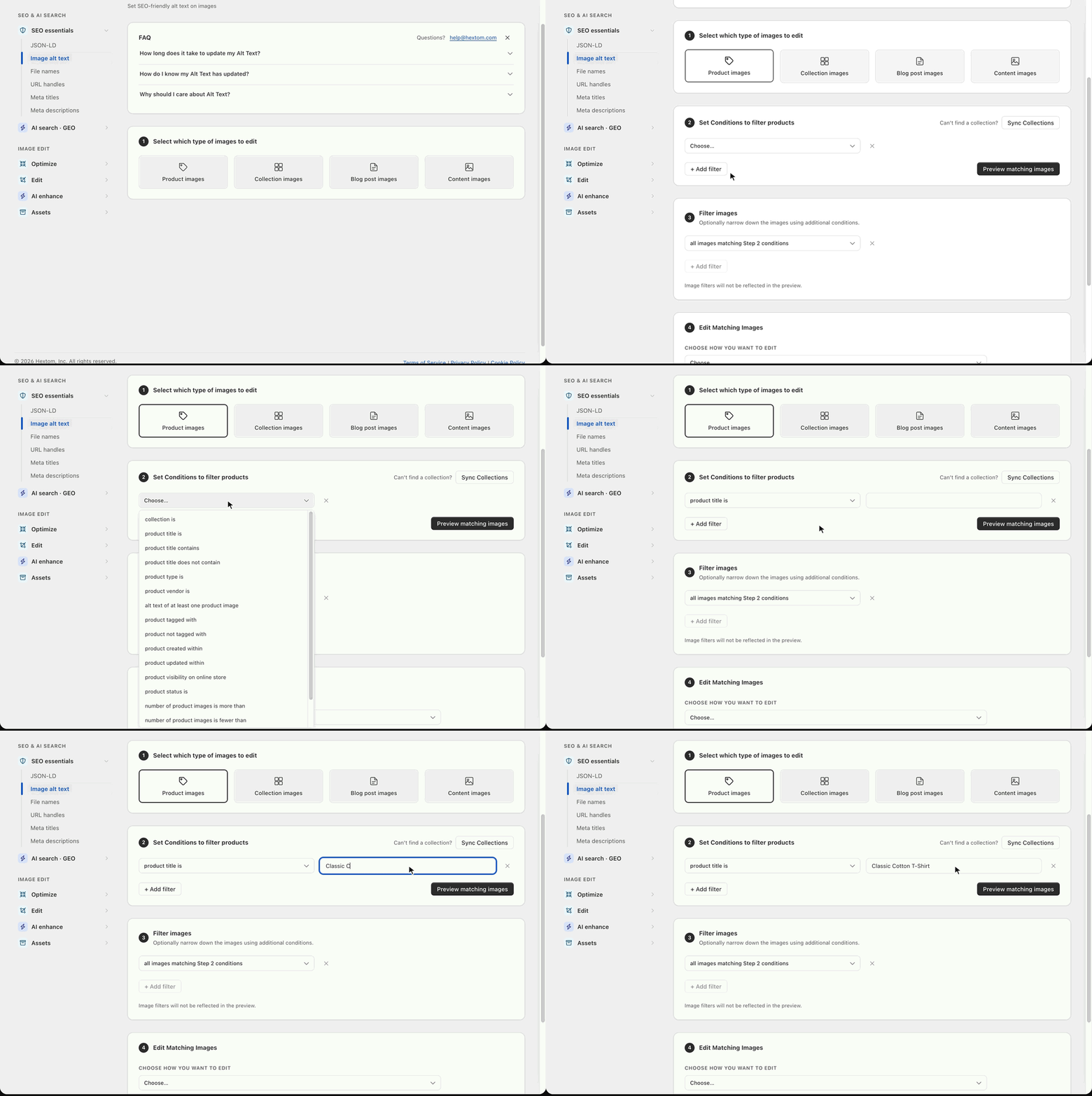
Step 1: Select which type of images to edit
Choose which type of images you want to edit. For this guide, we’ll use Product images, but you can also select Collection images, Blog post images or Content images.

Step 2: Set conditions to filter products
After selecting the image type, set conditions to choose which products to edit. Click + Add filter to add more conditions, or leave them empty to edit every product.
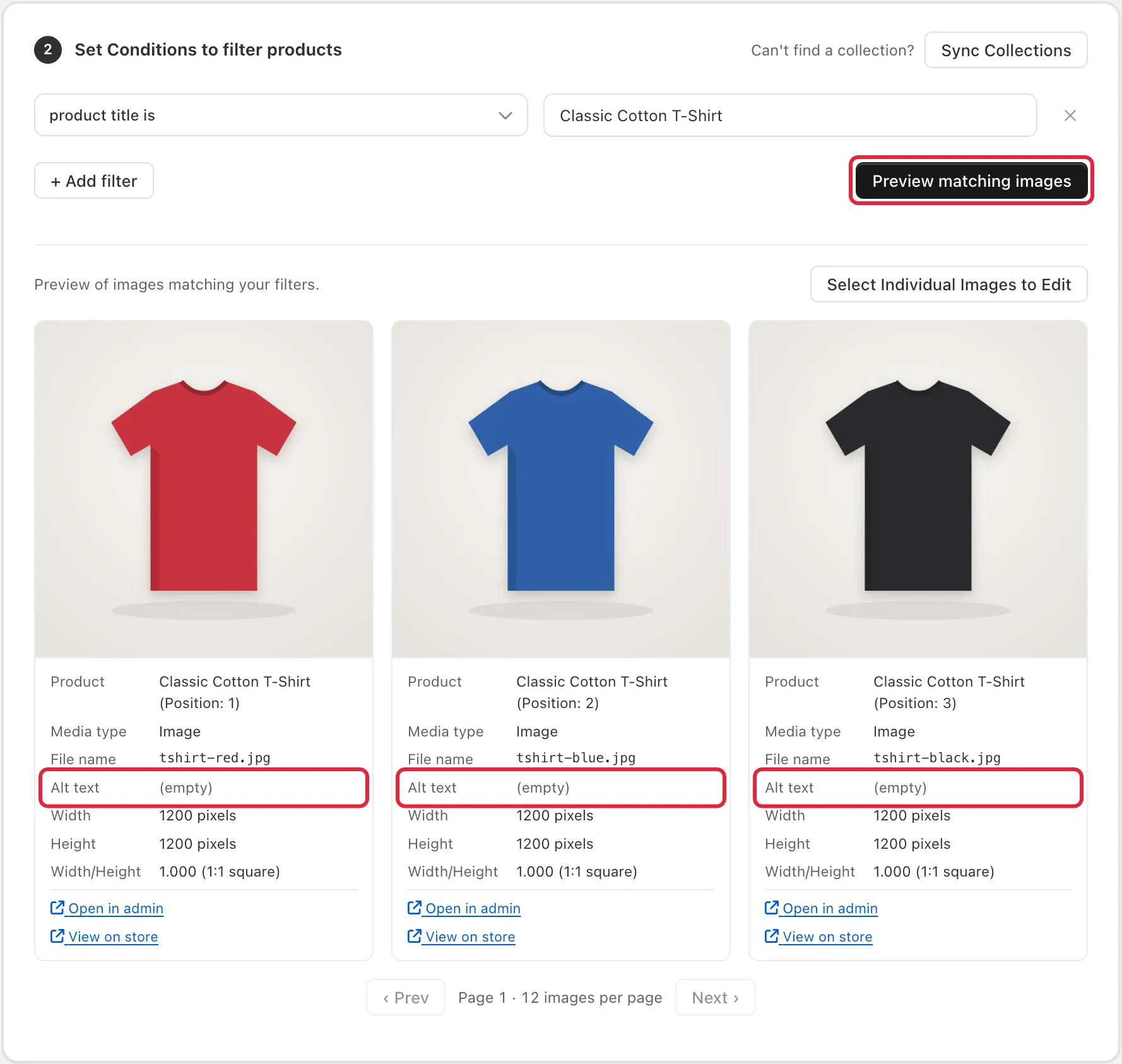
Click Preview matching images to see the images that match your conditions. This helps you confirm you’re editing the right images before you continue. To pick only a few specific images, click Select Individual Images to Edit (see How do I use the individual selection feature?).
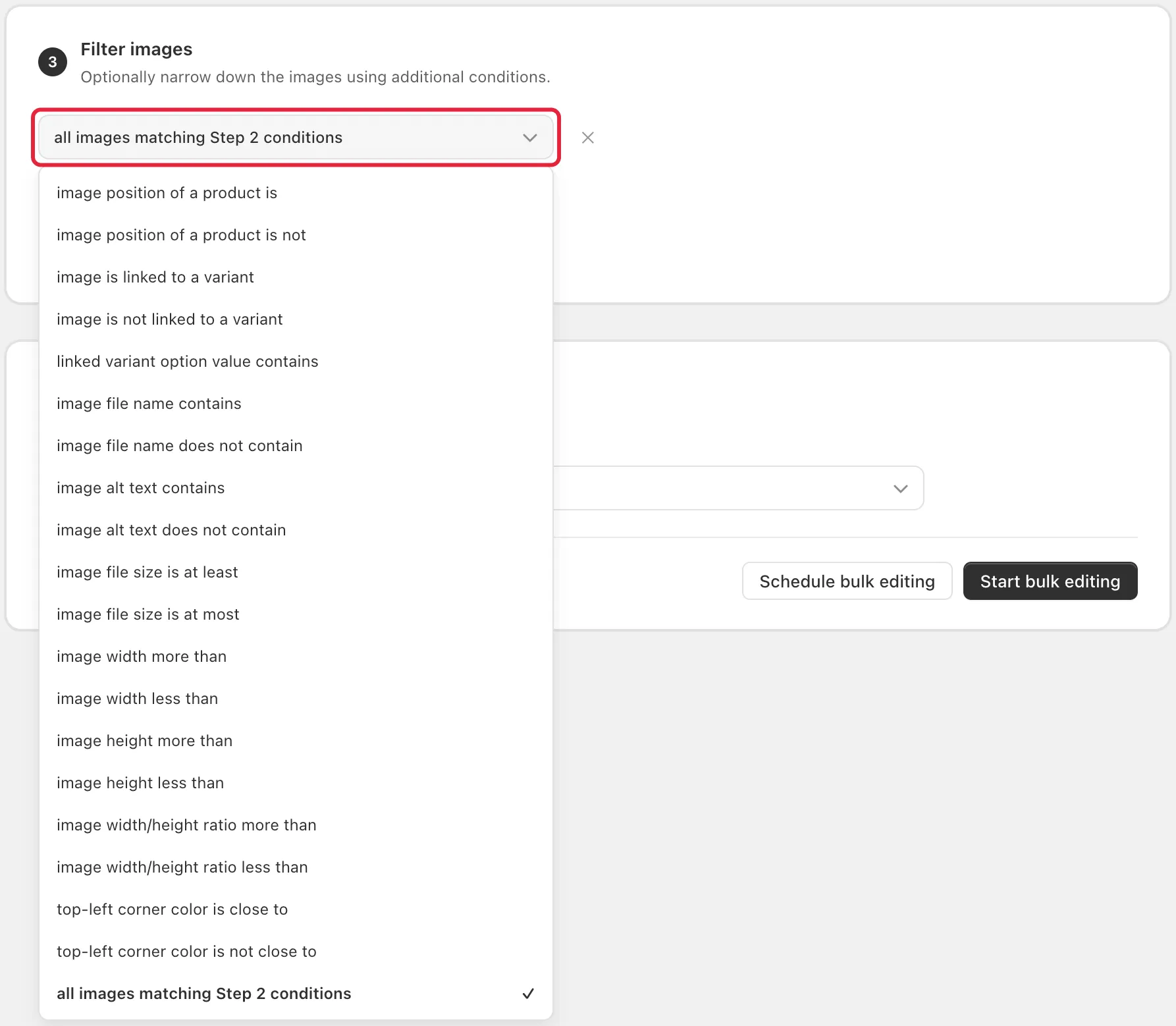
Step 3 (optional): Filter images
To narrow down the images further, click + Add filter under Filter images.
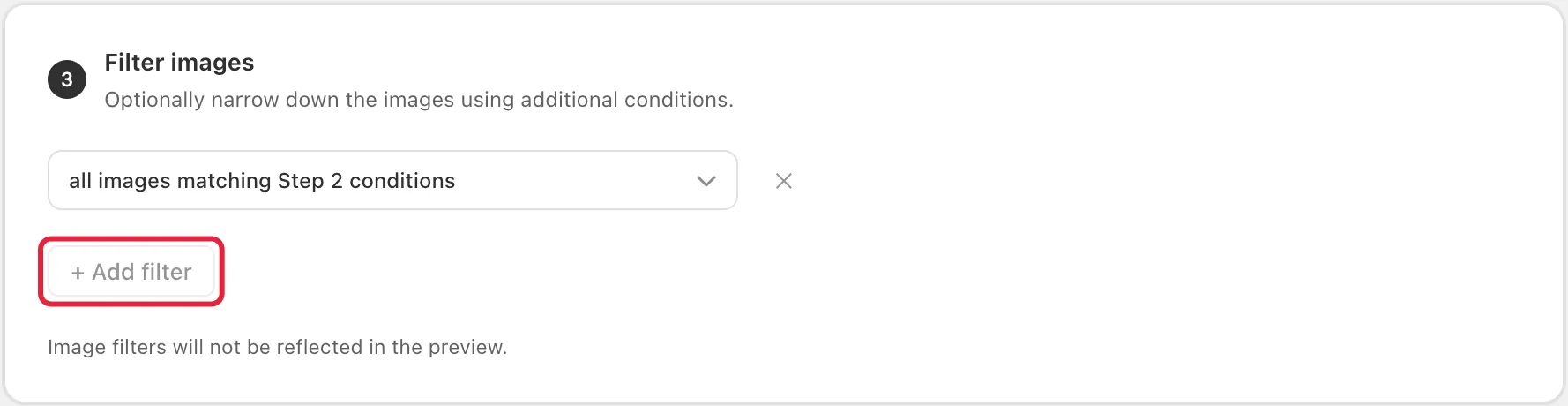
Choose a filter, such as image position of a product is or image alt text does not contain. This step is recommended for large catalogs, to avoid unintended changes. Note that image filters are not reflected in the preview.
Step 4: Edit matching images
Under Choose how you want to edit, select how the alt text should be updated:
- Update image alt-text with recommended template: sets the alt text to the product title.
- Update image alt-text with custom template: choose one of the default templates or create your own.
- Use AI to generate alt-text: AI writes the alt text for you.
- Use AI to generate alt-text (with custom options): as above, but you decide what information the AI uses, the tone, and any special instructions.
- Replace text in image alt-text: replaces specific text in the existing alt text.
- Remove text from image alt-text: removes specific text from the existing alt text.
- Clear alt-text: removes the alt text from the images completely.
Note: The template, replace, remove and clear options are free of credit charge. The two AI options use 2 credits per image. The cost of the option you choose is shown next to the dropdown.
For this guide, we’ll use Update image alt-text with custom template. You can also tick Skip images that have alt-text already to keep existing alt text unchanged.
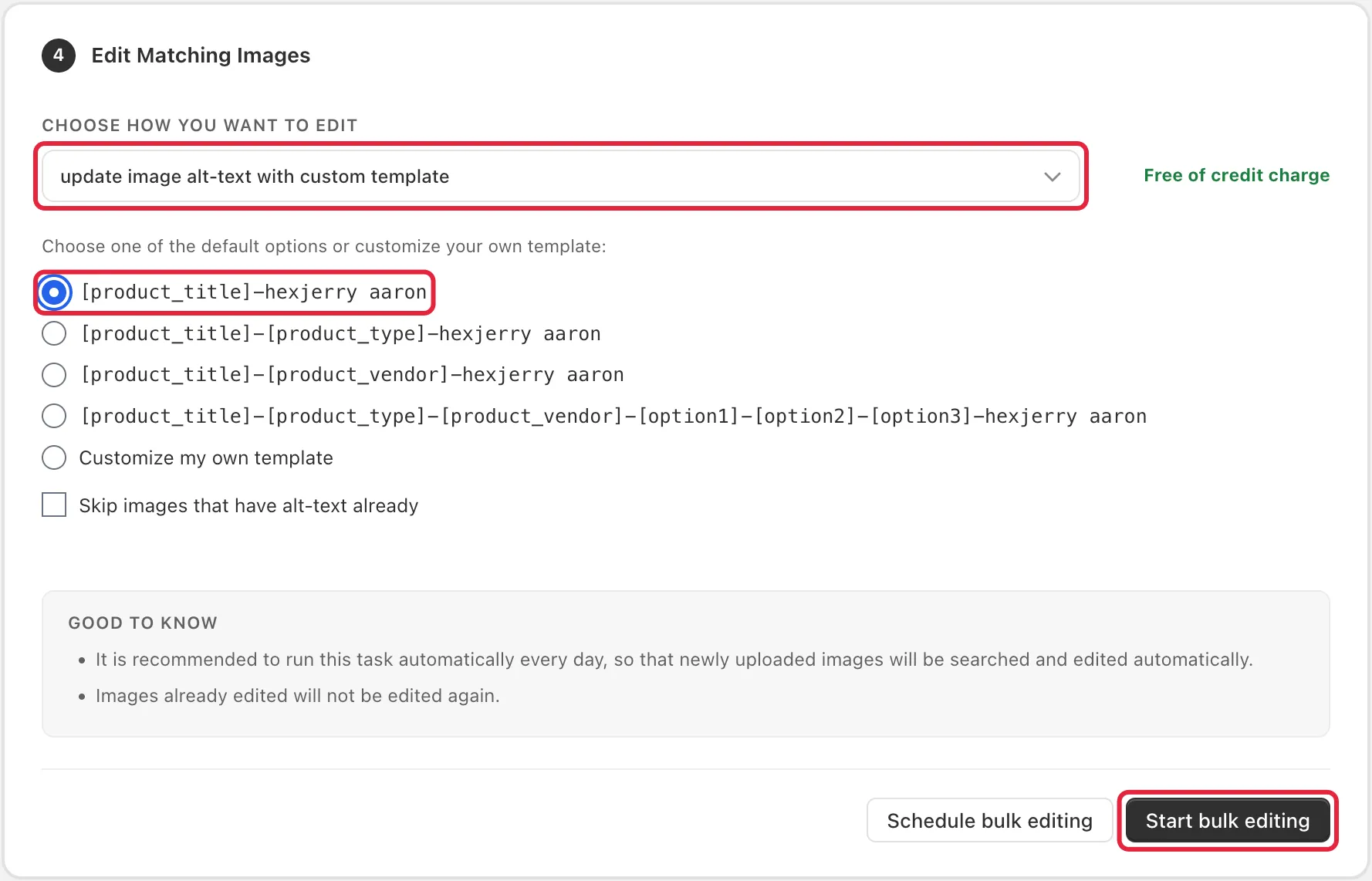
Click Start bulk editing. To run the task automatically, for example every day so new images are covered too, click Schedule bulk editing instead.
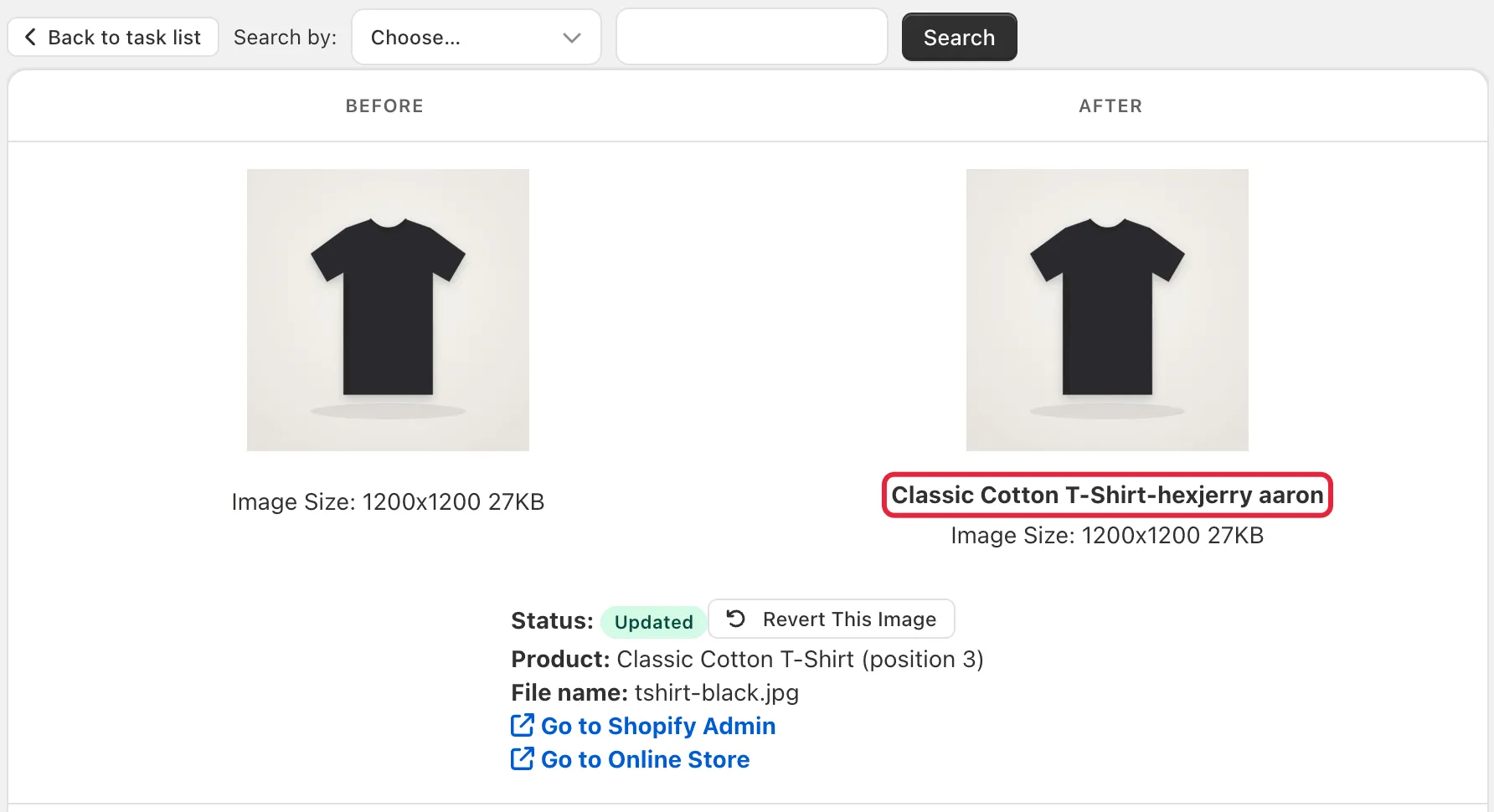
Once the task is completed, the images’ alt text is updated using the selected template. You can review each change on the task page, and click Revert This Image if needed. To undo a whole task, see How do I cancel/revert a task?
Related guides
- SEO Feature Overview: all the tools in the SEO & AI search section.
- How do I use the individual selection feature?: edit the alt text of specific images only.
If you have any concerns or feedback about the feature, please let us know at help@hextom.com.