
Bulk Product Edit
How do I bulk edit Google Shopping attributes?
All Google Shopping fields are products and variants metafields. On your Shopify store, all Google Shopping fields are stored as single-line text type product or variant metafields. While validation checking is available when you bulk-edit Google Shopping fields through our app, you may be able to import almost any value to your Shopify store as Google Shopping fields through CSV Import on our app.
However, if the value you import is not valid as the proper Google Shopping field value, Google Shopping may not be able to retrieve the attribute from your Shopify store even if you have the corresponding metafield in place, resulting in the attribute not showing properly on your Google Shopping listing. Therefore, it is essential that you make sure the value you upload through CSV is accepted by Google Shopping as an appropriate field value.
Accepted values for each Google Shopping field
Below is a list of all values (or value syntax) supported for each Google Shopping fields, as well as whether they can be edited as a product or variant field.
| Field | Value | Can be Edited as Product Field | Can be Edited as Variant Field | Value Source Priority |
|---|---|---|---|---|
| Custom Product (Whether this product is a custom product) | ‘true’ or ‘false’ | Yes | - | 1. Product Google Shopping Field value of custom product 2. Default value: False |
| Title | One single Unicode string representing the product title | Yes | Yes | 1. The Variant Google Shopping Field value of Title 2. The Product Google Shopping Field value of Title 3. The text [product_title] – [variant_title] 4. The text [product_title] |
| Description | One single Unicode string containing up to 5000 characters representing the product description, with HTML tags removed | Yes | Yes | 1. The Variant Google Shopping Field value of Description 2. The Product Google Shopping Field value of Description 3. Product description |
| Availability | ’in_stock’, ‘out_of_stock’, ‘available_for_order’ | Yes | Yes | 1. The Variant Google Shopping Field value of Availability 2. The Product Google Shopping Field value of Availability 3. ‘in_stock’ if the inventory level is > 0, the inventory is not tracked or if overselling is enabled 4. Default value: ‘out_of_stock’ |
| Google Product Category | Either the digital ID number or full name as shown on the complete list of all Google product categories. For example, you may upload either ‘7398’ or ‘Animals & Pet Supplies > Pet Supplies > Bird Supplies > Bird Gyms & Playstands’ | Yes | Yes | 1. The Variant Google Shopping Field value of Google Product Category 2. The Product Google Shopping Field value of Google Product Category 3. Product Type (if it matches a Google Category name) 4. Product Category (if it matches a Google Category name) 5. Product Tag (if it matches a Google Category name) |
| Product Type | One single Unicode string representing the custom product type | Yes | Yes | 1. The Variant Google Shopping Field value of Product Type 2. The Product Google Shopping Field value of Product Type 3. Product custom product type |
| Brand | One single Unicode string representing the custom brand; blank if no GTIN is provided | Yes | Yes | 1. The Variant Google Shopping Field value of Brand 2. The Product Google Shopping Field value of Brand 3. Product vendor |
| Age Group | ’newborn’, ‘infant’, ‘toddler’, ‘kids’ or ‘adult’ | Yes | Yes | 1. The Variant Google Shopping Field value of Age Group 2. The Product Google Shopping Field value of Age Group 3. Variant option value for the option with name “Age Group” 4. Product tag value that starts with “age_group” |
| Gender | ’male’, ‘female’ or ‘unisex’ | Yes | Yes | 1. The Variant Google Shopping Field value of Gender 2. The Product Google Shopping Field value of Gender 3. Variant option value for the option with name “Gender” 4. Product tag value that starts with “gender” |
| Condition | ’new’, ‘refurbished’ or ‘used’ | Yes | Yes | 1. The Variant Google Shopping Field value of Condition 2. The Product Google Shopping Field value of Condition 3. Default value: “new” |
| Color | Up to 3 alphanumeric strings each representing a color, separated by a slash (/). For example, you may upload ‘Blue’ or ‘Red/Yellow/Green’ | Yes | Yes | 1. The Variant Google Shopping Field value of Color 2. The Product Google Shopping Field value of Color 3. Variant option value for the option with name “Color” 4. Product tag value that starts with “color” 5. Variant option value for the option with name “Colour” 6. Product tag value that starts with “colour” |
| Material | One single Unicode string representing a material | Yes | Yes | 1. The Variant Google Shopping Field value of Material 2. The Product Google Shopping Field value of Material 3. Variant option value for the option with name “Material” 4. Product tag value that starts with “material” |
| Size | Please refer to the Google Merchant Center Help page for a comprehensive list of supported size input examples. For example, you may upload ‘XS’, ‘M’ or ‘3XL’ | Yes | Yes | 1. The Variant Google Shopping Field value of Size 2. The Product Google Shopping Field value of Size 3. Variant option value for the option with name “Size” 4. Product tag value that starts with “size” |
| Size system | ’AU’, ‘BR’, ‘CN’, ‘DE’, ‘EU’, ‘FR’, ‘IT’, ‘JP’, ‘MEX’, ‘UK’ or ‘US’ | Yes | Yes | 1. The Variant Google Shopping Field value of Size System 2. The Product Google Shopping Field value of Size System 3. Variant option value for the option with name “Size System” 4. Product tag value that starts with “size_system” |
| Size type | ’regular’, ‘petite’, ‘plus’, ‘tall’, ‘big’ or ‘maternity’ | Yes | Yes | 1. The Variant Google Shopping Field value of Size Type 2. The Product Google Shopping Field value of Size Type 3. Variant option value for the option with name “Size Type” 4. Product tag value that starts with “size_type” |
| Unit Pricing Measure | One positive number | Yes | Yes | 1. The Variant Google Shopping Field value of Unit Pricing Measure 2. The Product Google Shopping Field value of Unit Pricing Measure |
| Unit Pricing Measure Unit | Please refer to the list of all supported units below | Yes | Yes | 1. The Variant Google Shopping Field value of Unit Pricing Measure Unit 2. The Product Google Shopping Field value of Unit Pricing Measure Unit |
| Unit Pricing Base Measure | One positive whole number (integer) | Yes | Yes | 1. The Variant Google Shopping Field value of Unit Pricing Base Measure 2. The Product Google Shopping Field value of Unit Pricing Base Measure |
| Unit Pricing Base Measure Unit | Please refer to the list of all supported units below | Yes | Yes | 1. The Variant Google Shopping Field value of Unit Pricing Base Measure Unit 2. The Product Google Shopping Field value of Unit Pricing Base Measure Unit |
| Manufacturer part number (MPN) | One alphanumeric string containing up to 70 characters; blank if no GTIN is provided | Yes | Yes | 1. The Variant Google Shopping Field value of MPN 2. The Product Google Shopping Field value of MPN 3. Variant SKU |
| Global Trade Item Number (GTIN) | One alphanumeric string containing up to 70 characters | Yes | Yes | 1. The Variant Google Shopping Field value of GTIN 2. The Product Google Shopping Field value of GTIN 3. Variant Barcode |
| Custom Label 0 | One string containing up to 100 Unicode characters | Yes | Yes | 1. The Variant Google Shopping Field value 2. The Product Google Shopping Field value |
| Custom Label 1 | One string containing up to 100 Unicode characters | Yes | Yes | 1. The Variant Google Shopping Field value 2. The Product Google Shopping Field value |
| Custom Label 2 | One string containing up to 100 Unicode characters | Yes | Yes | 1. The Variant Google Shopping Field value 2. The Product Google Shopping Field value |
| Custom Label 3 | One string containing up to 100 Unicode characters | Yes | Yes | 1. The Variant Google Shopping Field value 2. The Product Google Shopping Field value |
| Custom Label 4 | One string containing up to 100 Unicode characters | Yes | Yes | 1. The Variant Google Shopping Field value 2. The Product Google Shopping Field value |
Note: The values listed above are all case-sensitive.
List of All Supported Units
The following units are supported in Unit Pricing Measure Unit and Unit Pricing Base Measure Unit attributes in Google Shopping.
- Weight: ‘oz’, ‘lb’, ‘mg’, ‘g’, ‘kg’
- Volume (US Imperial): ‘floz’, ‘pt’, ‘qt’, ‘gal’
- Volume (metric): ‘ml’, ‘cl’, ‘l’, ‘cbm’
- Length: ‘in’, ‘ft’, ‘yd’, ‘cm’, ‘m’
- Area: ‘sqft’, ‘sqm’
- Per unit: ‘ct’
Methods to Edit Google Shopping Fields
You can edit Google Shopping fields either by bulk-edit based on filters, or import them from a Spreadsheet CSV/Excel file. We are going to introduce both of these methods.
Method #1: Filter based bulk edit
To bulk edit Google Shopping fields, go to Create Task, open Products and select Google Shopping.
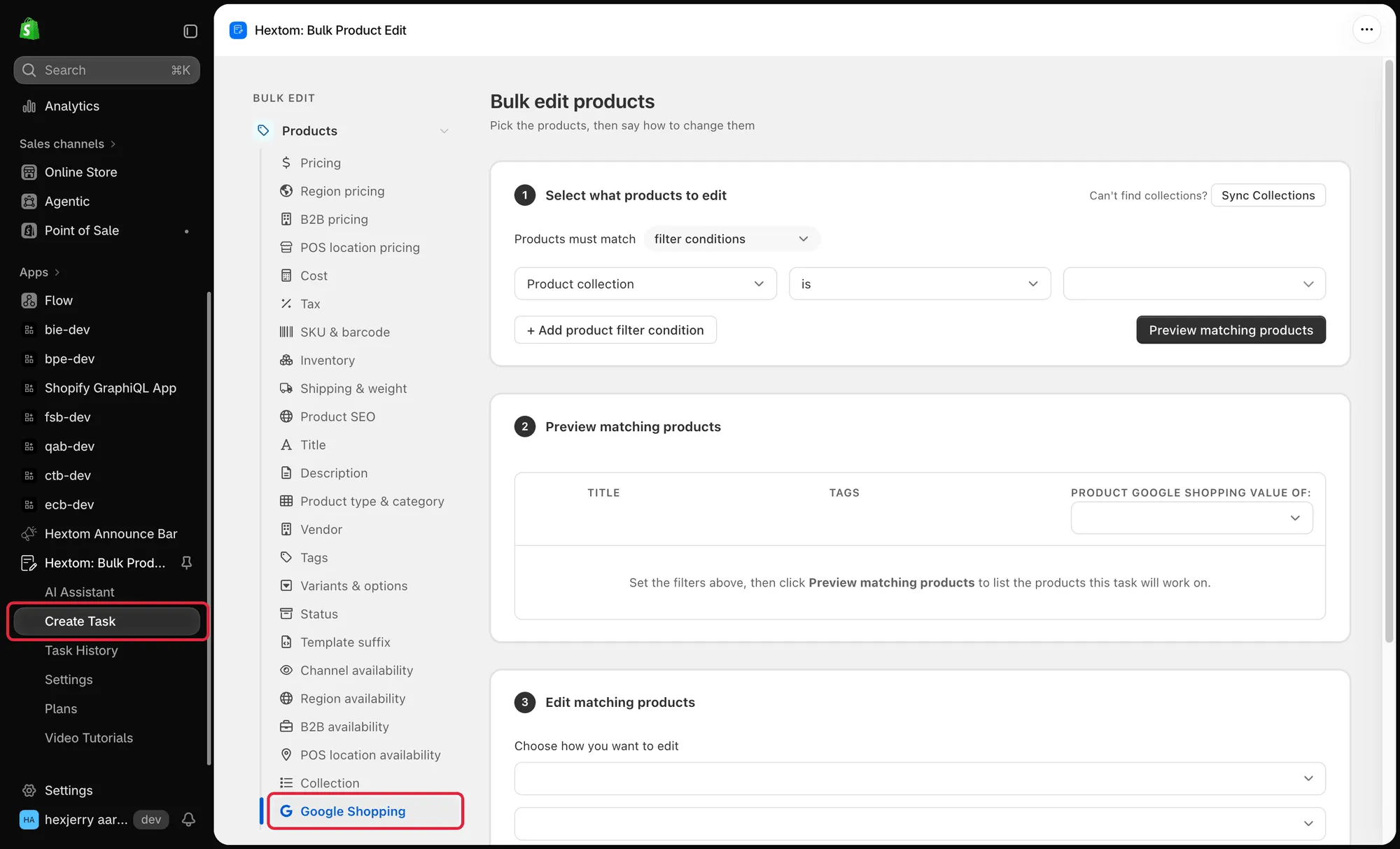
- Set up the filter to select the products you want to bulk edit and preview the matching products.
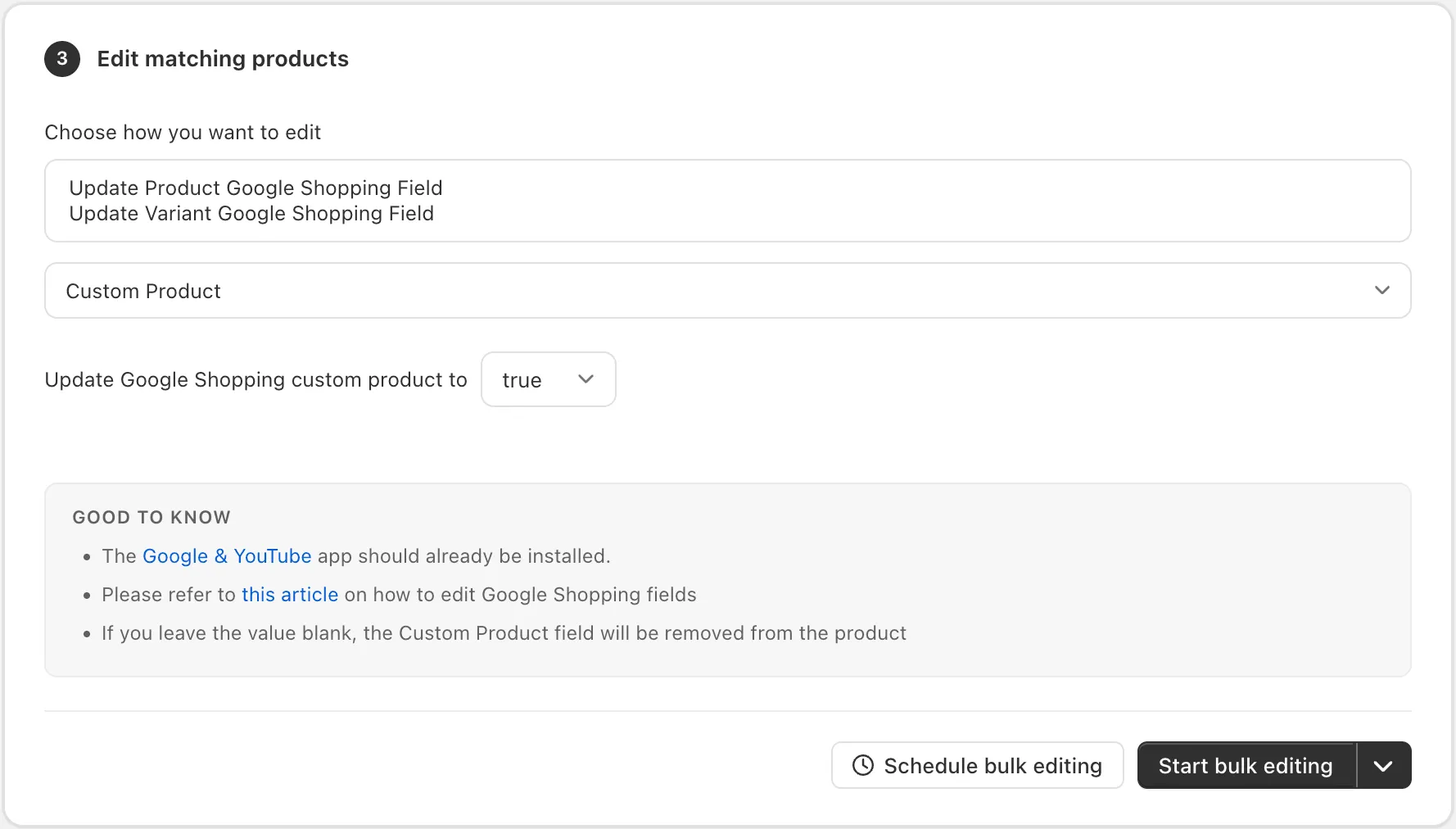
- Choose how to edit matching products/variants. In this step, select whether you want to bulk edit a product or variant Google Shopping field, then choose the specific field you want to edit.
- Then fill in the value for the Google Shopping field you want to update. For fields with fixed value options, select the desired value from the dropdown; otherwise, enter the value in the text box.
- Click Start bulk editing and the app will update the Google Shopping fields for all matching products/variants.
Method #2: CSV file based bulk edit
To edit Google Shopping fields by importing CSV/Excel spreadsheet files, go to Create Task > CSV import > Products.
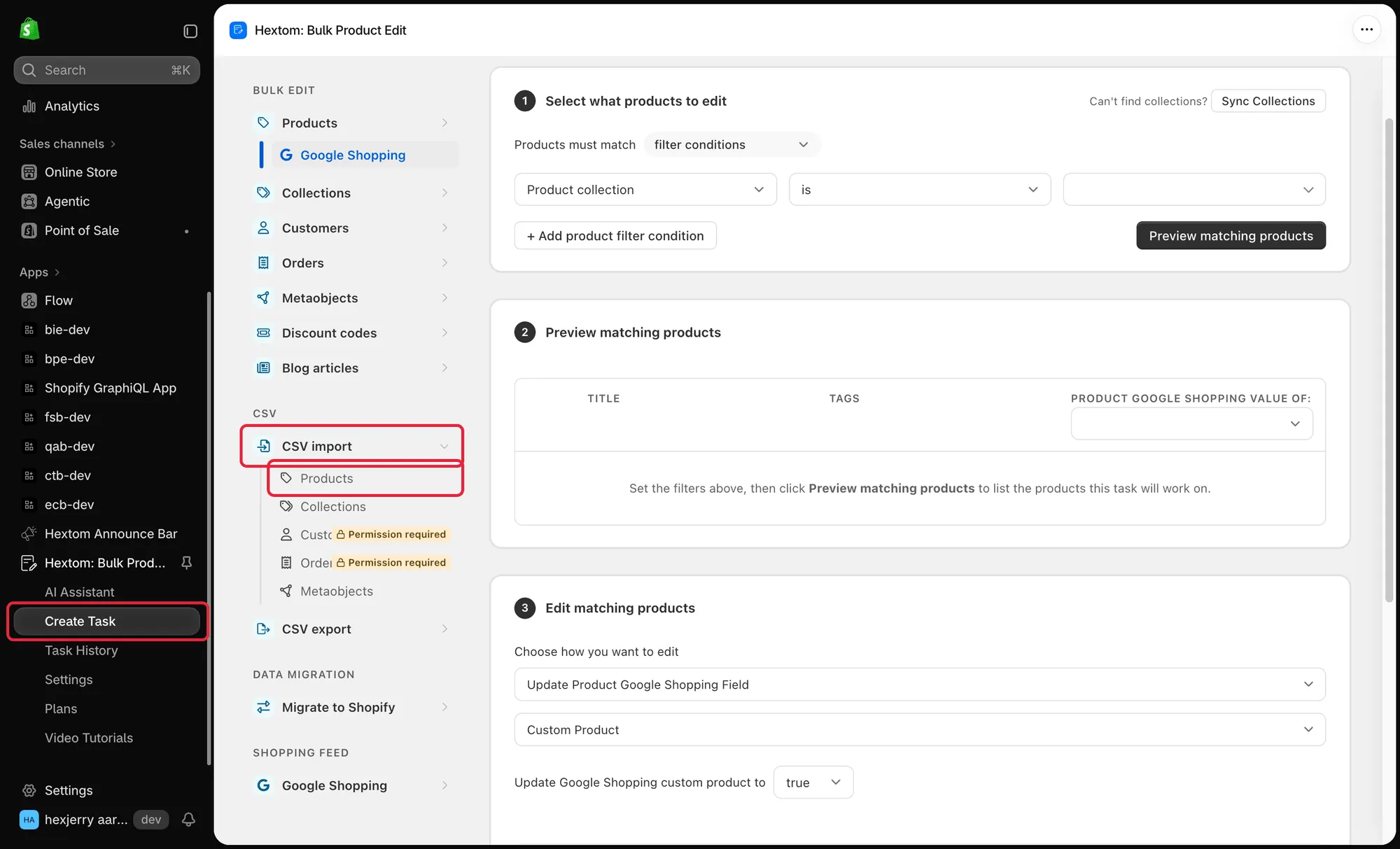
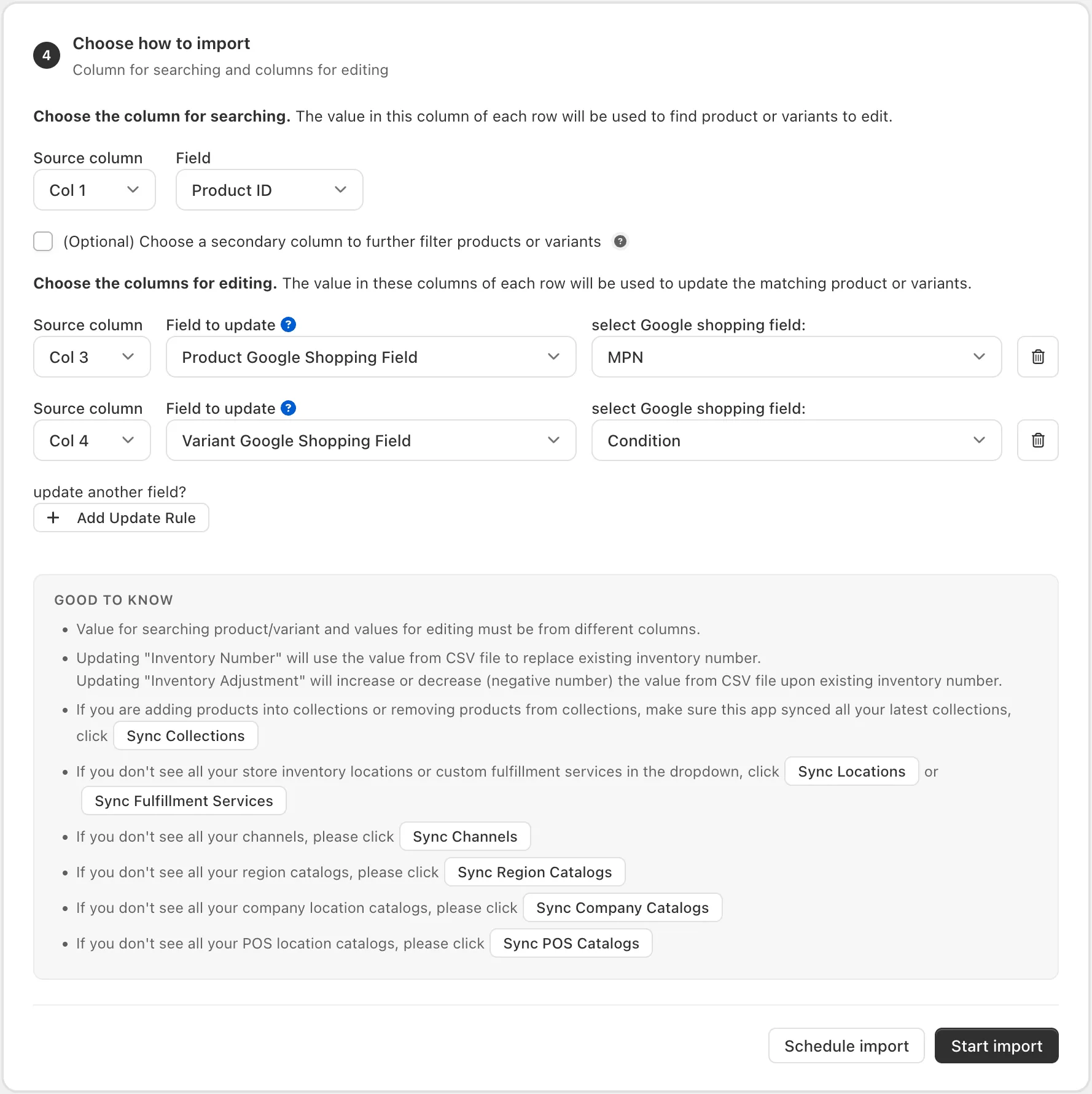
Follow the usual steps to upload and preview your spreadsheet file. On Step 4: Column for searching and columns for editing:
- Select the column in your spreadsheet that contains the attribute you want to edit.
- Choose Product Google Shopping Field if you’re editing product fields, or Variant Google Shopping Field if you’re editing variant fields.
- Select the specific field you want to edit using the corresponding column in your spreadsheet.
- Then click Start import.
If you have any additional questions about the topic feel free to chat us or email us at help@hextom.com